Transfer
Dateien sicher teilen. Die Kontrolle behalten.
Flowtig Transfer unterstützt Organisationen dabei, Dateien sicher mit Kunden, Kollegen und Geschäftspartnern zu teilen.
Anstatt auf externe Filesharing-Dienste angewiesen zu sein, bietet Transfer professionelle Downloadseiten mit konfigurierbaren Zugriffsbeschränkungen, Download-Tracking und einer vollständigen Aktivitätshistorie – vollständig integriert in die Flowtig-Plattform.
Ob Sie Rechnungen bereitstellen, Projektdateien teilen oder große Dokumente austauschen – Transfer sorgt dafür, dass jeder Dateitransfer organisiert, sicher und transparent bleibt.
Professioneller Dateiaustausch
Transfer kombiniert die sichere Bereitstellung von Dateien mit vollständiger Transparenz und ermöglicht Organisationen die Kontrolle darüber, wie Dateien geteilt, aufgerufen und heruntergeladen werden.
Warum Transfer verwenden?
Geschäftliche Dateien müssen häufig mit Personen außerhalb der eigenen Organisation geteilt werden.
Dabei stellen sich typische Fragen wie:
- Wie kann ich große Dateien sicher versenden?
- Wie lange soll dieser Download verfügbar bleiben?
- Hat der Kunde die Dateien bereits heruntergeladen?
- Kann ich Downloads mit einem Passwort schützen?
- Kann ich den Zugriff später wieder deaktivieren?
Transfer beantwortet diese Fragen und sorgt gleichzeitig für einen einfachen und professionellen Dateiaustausch.
Übersicht
Mit Transfer können Sie:
- Dateien beliebiger Größe hochladen
- Öffentliche Downloadseiten erstellen
- Transfers mit Passwörtern schützen
- Downloads begrenzen
- Ablaufdaten festlegen
- Downloads und Aufrufe überwachen
- Unterstützte Dateitypen in einer Vorschau anzeigen
- Die vollständige Aktivitätshistorie einsehen
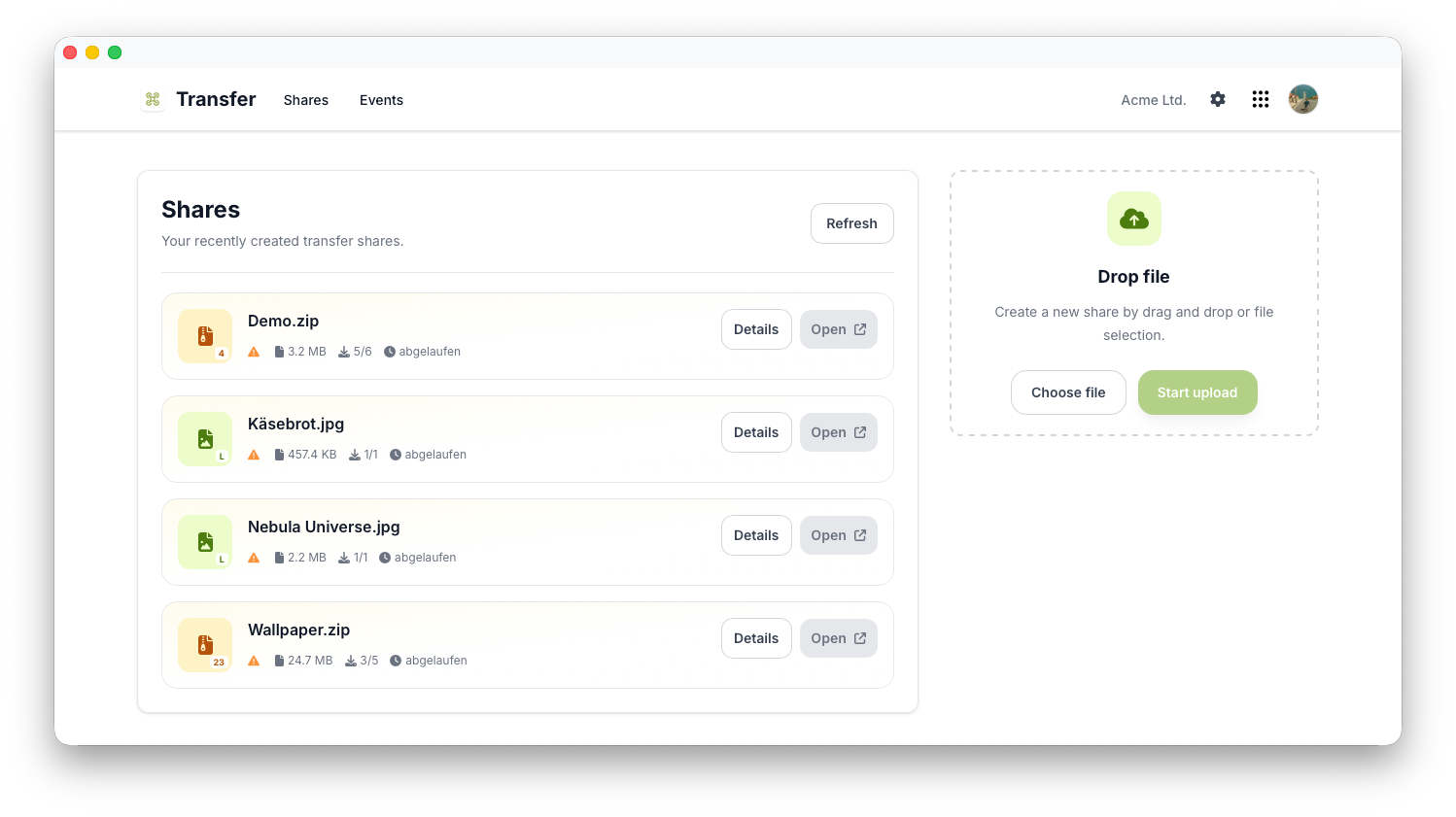
Einen Transfer erstellen
Ein neuer Transfer ist in wenigen Schritten erstellt.
- Laden Sie eine oder mehrere Dateien hoch.
- Fügen Sie optional einen Titel und eine Beschreibung hinzu.
- Konfigurieren Sie die Sicherheitseinstellungen.
- Teilen Sie den erzeugten Download-Link.
Empfänger erhalten unmittelbar Zugriff auf eine übersichtliche und professionelle Downloadseite, ohne dafür ein Flowtig-Konto zu benötigen.
Tip
Ein aussagekräftiger Titel und eine kurze Beschreibung helfen Empfängern dabei, den Zweck des Transfers schnell zu erkennen.
Dateien hochladen
Transfer unterstützt sowohl einzelne Dateien als auch umfangreiche Dateisammlungen.
Typische Beispiele sind:
- PDF-Dokumente
- Bilder
- ZIP-Archive
- Office-Dokumente
- CAD-Zeichnungen
- Videos
Mehrere Dateien können einfach in einem einzigen Transfer zusammengefasst werden.
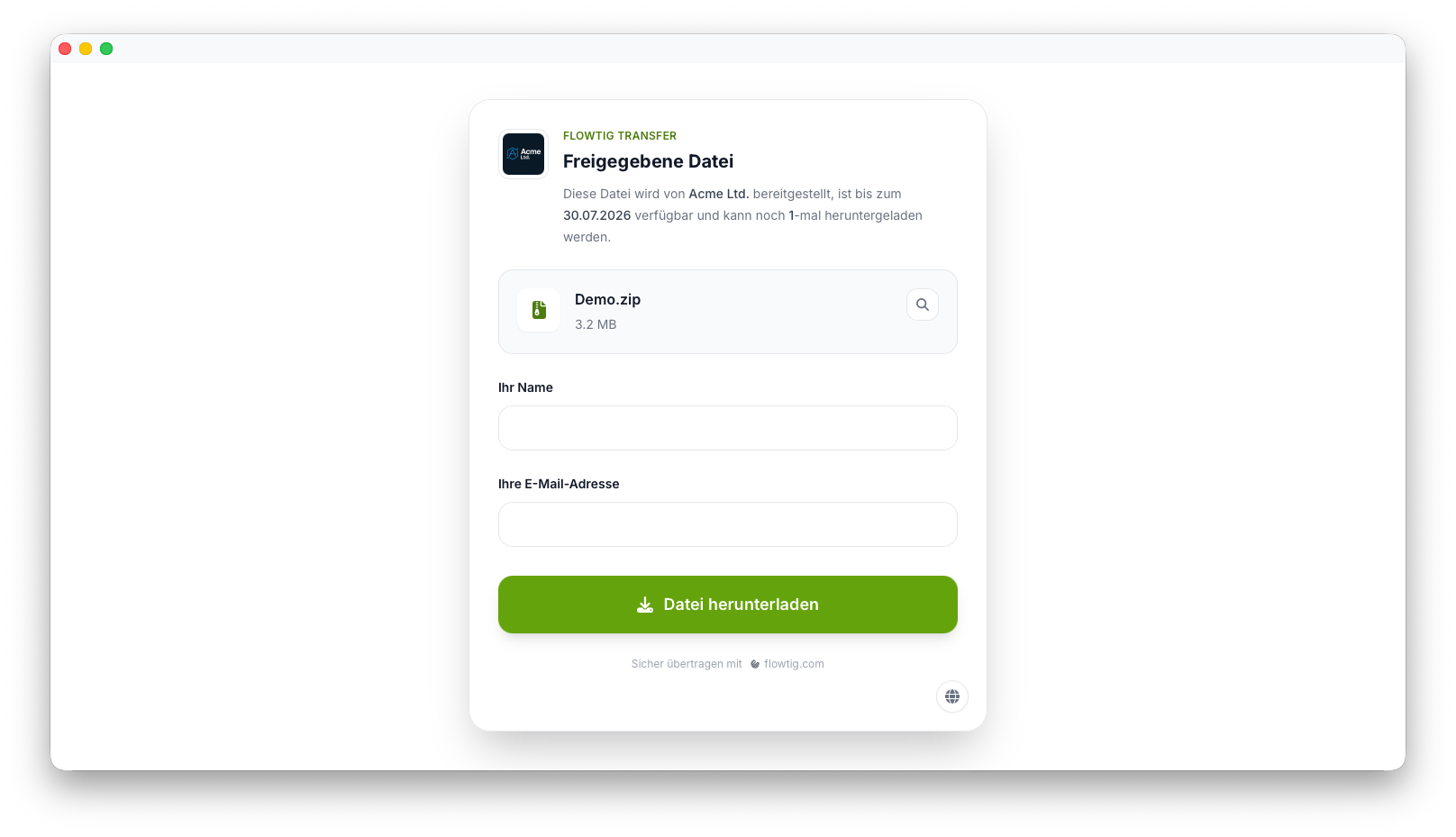
Downloadseiten
Jeder Transfer erhält eine eigene Downloadseite.
Empfänger können:
- Informationen zum Transfer einsehen
- Unterstützte Dateien in einer Vorschau anzeigen
- Einzelne Dateien herunterladen
- Vollständige Archive herunterladen
Die Downloadseite ist einfach und modern gestaltet und kann auf jedem Gerät verwendet werden.
Zugriffskontrolle
Transfer bietet verschiedene Möglichkeiten, den Zugriff auf Dateien zu kontrollieren.
Verfügbare Optionen sind:
- Passwortschutz
- Ablaufdaten
- Download-Limits
- Manuelle Deaktivierung
Diese Einstellungen helfen dabei sicherzustellen, dass Dateien nur so lange verfügbar bleiben, wie sie tatsächlich benötigt werden.
Die Kontrolle behalten
Jeder Transfer bleibt während seines gesamten Lebenszyklus unter Ihrer Kontrolle.
Dateivorschau
Transfer analysiert hochgeladene Dateien automatisch.
Abhängig vom Dateityp können Empfänger Inhalte bereits vor dem Download in einer Vorschau ansehen.
Unterstützte Vorschauen umfassen:
- Bilder
- Inhalte von ZIP-Archiven
Mithilfe der Vorschau können Empfänger den Inhalt von Dateien vor dem Herunterladen überprüfen.
Aktivitätshistorie
Jeder Transfer verfügt über eine vollständige Aktivitätshistorie.
Typische Ereignisse sind:
- Transfer erstellt
- Downloadseite geöffnet
- Datei heruntergeladen
- Transfer abgelaufen
- Transfer deaktiviert
Dadurch entsteht vollständige Transparenz für jede geteilte Datei.
Vollständige Nachvollziehbarkeit
Die Aktivitätshistorie hilft dabei nachzuvollziehen, wann Dateien aufgerufen und heruntergeladen wurden.
Benachrichtigungen
Transfer ist in das Benachrichtigungssystem von Flowtig integriert.
Benachrichtigungen können Benutzer über Ereignisse informieren wie:
- Ablauf eines Transfers
- Erfolgreiche Downloads
- Neu erstellte Transfers
Dadurch bleiben Teams informiert, ohne die Anwendung ständig überprüfen zu müssen.
Berechtigungen
Transfer verwendet das zentrale Berechtigungssystem von Flowtig.
Typische Berechtigungen umfassen:
| Berechtigung | Beschreibung |
|---|---|
| Transfers anzeigen | Transfers einsehen |
| Transfers erstellen | Neue Dateien hochladen |
| Transfers bearbeiten | Einstellungen von Transfers ändern |
| Transfers löschen | Transfers entfernen |
| Downloads verwalten | Zugriffsbeschränkungen konfigurieren |
Berechtigungen können unabhängig voneinander vergeben werden. Dadurch behalten Organisationen die vollständige Kontrolle über geteilte Dateien.
Empfehlungen
Empfehlung
Verwenden Sie Ablaufdaten, wenn Dateien nur vorübergehend benötigt werden.
Tip
Schützen Sie vertrauliche Dokumente mit einem Passwort, bevor Sie diese außerhalb Ihrer Organisation teilen.
Tip
Fassen Sie zusammengehörige Dateien in einem einzigen Transfer zusammen, um die Kommunikation mit Kunden zu vereinfachen.
Note
Prüfen Sie die Aktivitätshistorie, wenn Sie eine Bestätigung darüber benötigen, ob Dateien abgerufen wurden.
Integrationen
Transfer lässt sich nahtlos mit anderen Flowtig-Anwendungen kombinieren.
| Anwendung | Integration |
|---|---|
| Kontakte | Kunden und Geschäftspartner |
| Rechnungen | Sicherer Rechnungsversand |
| Rechnungsarchiv | Austausch von Rechnungsdokumenten |
| Kalender | Zeitlich geplante Dateiverfügbarkeit |
| Immobilien | Exposés, Grundrisse und Nachweise teilen |
Mit dem weiteren Ausbau der Flowtig-Plattform werden zusätzliche Integrationen verfügbar.
Häufig gestellte Fragen
Kann ich mehrere Dateien teilen?
Ja.
Jeder Transfer kann eine oder mehrere Dateien enthalten.
Können Transfers automatisch ablaufen?
Ja.
Für jeden Transfer kann individuell ein Ablaufdatum festgelegt werden.
Können Downloads begrenzt werden?
Ja.
Transfer unterstützt individuell konfigurierbare Download-Limits für jeden geteilten Link.
Können Transfers mit einem Passwort geschützt werden?
Ja.
Der Passwortschutz kann aktiviert werden, bevor ein Transfer geteilt wird.
Können Empfänger Dateien in einer Vorschau ansehen?
Ja.
Unterstützte Dateitypen wie Bilder und ZIP-Archive können direkt auf der Downloadseite in einer Vorschau angezeigt werden.
Typischer Ablauf
Dateien hochladen
      │
      ▼
Sicherheit konfigurieren
      │
      ▼
Download-Link teilen
      │
      ▼
Empfänger lädt Dateien herunter
      │
      ▼
Aktivitätshistorie prüfen
Siehe auch
Transfer funktioniert besonders gut zusammen mit:
Benötigen Sie Hilfe?
Benötigen Sie Unterstützung bei Transfer?
Weitere Informationen finden Sie auf der Flowtig-Website oder über unseren Support:
- https://flowtig.com/apps/transfer
- https://flowtig.com/contact